
Auditing a BIM model by hand is slow, and most of the time goes into gathering information, not judging it. In this first part of the series we build a pyRevit button, with Cursor doing most of the typing, that pulls everything an audit needs out of the model and its links into a single JSON file.
The AI Audit Pipeline
It all starts from my BIM Model Audit Template. Some of its checks can be fully automated, some need a tool to extract the information and a person to review it, and some are manual, full stop. The series takes the first two groups and builds the chain in three videos: extract with pyRevit, interpret with Claude Code, track in Power BI.
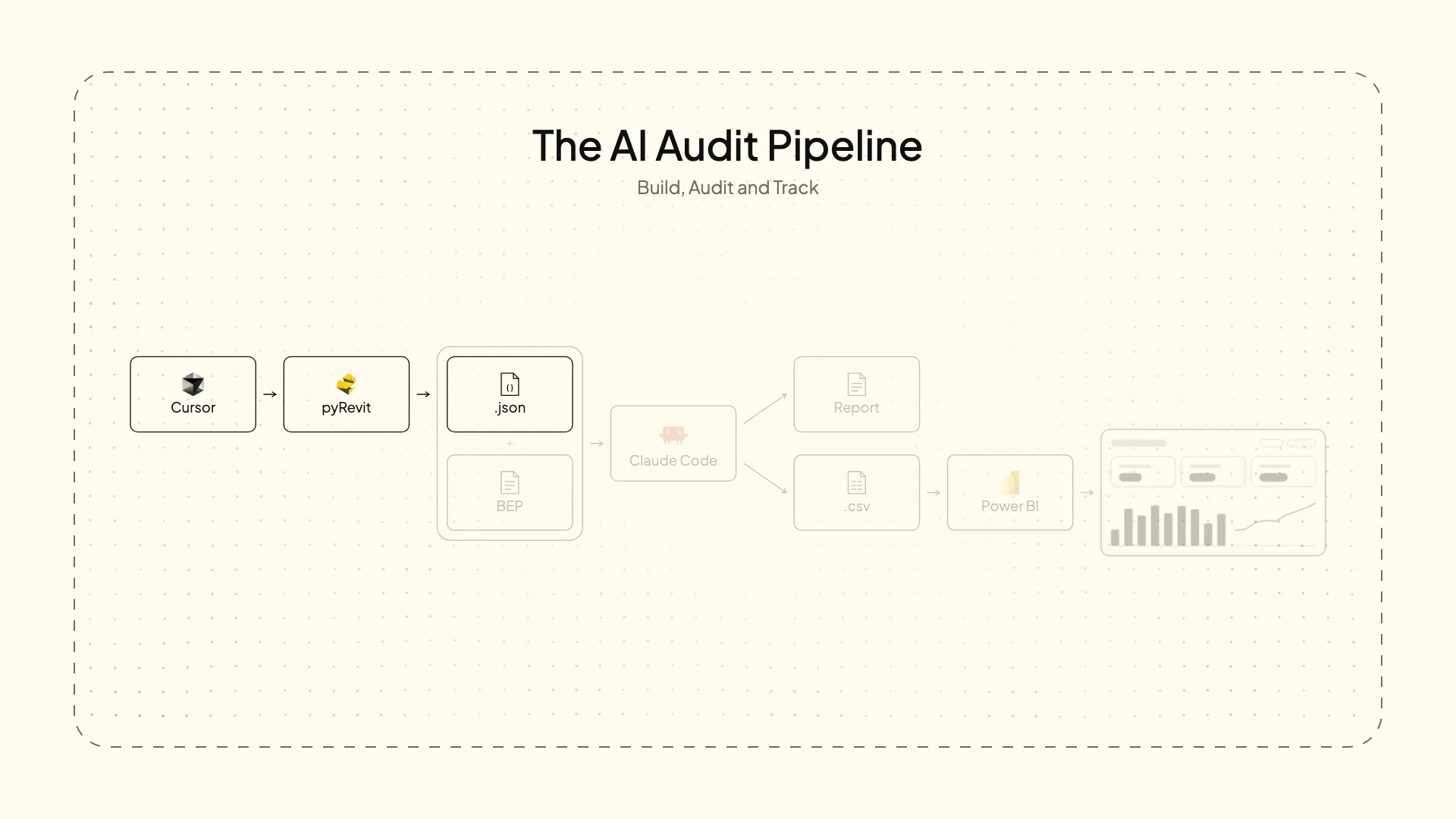
The button doesn’t judgeIt only extracts. Deciding what’s wrong is the AI’s job, in the next video. That’s why the output is JSON: nobody needs to read it, and it’s exactly the kind of structure an LLM interprets well.
Setting up Cursor
pyRevit has no compilation step, so the loop between writing code and pressing the button in Revit is very short. That’s what makes an AI editor like Cursor such a good fit.
Out of the box, though, the editor doesn’t know the Revit API. Three commands fix it with the Revit API stubs:
python -m venv .venv-rvt-26
.venv-rvt-26\Scripts\activate
pip install pyrevit-stubs-26
Then Ctrl+Shift+P → Python: Select Interpreter and pick the one it recommends. Now the agent has a real reference to check the API against.
Project rules: AGENTS.md
Before any code, an AGENTS.md at the root of the project sets the rules. It’s deliberately short, so it doesn’t fill the context with noise:
- Project. We’re building a pyRevit button that exports a JSON.
- Environment. This runs on IronPython 2.7, not Python 3. The virtual environment is only there for autocomplete. If a method isn’t in the stubs, don’t use it. This isn’t my first pyRevit tool, and these are the places where it tends to go wrong.
- Code. Never compare against localised text: with Revit in another language, the extraction has to work exactly the same. A note about
Element.Name. And Revit works in feet at API level, so everything comes back in metres. - Structure. A single file,
script.py, that works across all linked models: run it from any model and the information is the same. Plus three rules that make the output usable: a broken check doesn’t take down the rest, there are always element IDs so you can select things in Revit, and long lists get trimmed with a counter. - Checks. Which checks from the template to build, from NAM-08 and STR-02 all the way to FAM-01.
Since everything lives in one file, there’s no point in running several agents in parallel. One agent, one file.
The checks
Eleven checks from the template, one function each, with the ID as the key in the JSON:
| ID | Check |
|---|---|
| NAM-08 | Sheets: numbering and names |
| STR-02 | No model groups |
| STR-04 | File size |
| PRO-02 | Imported or exploded CADs |
| PRO-04 | Design options |
| SHT-07 | Views on sheets without a template |
| QUA-03 | Geometry close to the origin |
| QUA-05 | Generic model families |
| QUA-09 | Warning count |
| COO-04 | Project base point and survey point |
| FAM-01 | Manufacturer families |
NAM-08 · Sheets
The first prompt sets up the whole structure: the host model, its links, one function per check.
Prompt:
Modify script.py: it should go through the active model and all its linked models, run the checks on each one, and write the JSON to the same folder as the script. Each check in its own function, with its ID as the key inside the JSON.

Add the first one, NAM-08: a list of all sheets with their number and name, per model.

Before you write anything, tell me which API classes you're going to use and confirm they're in the stubs.
QUA-03 · Distance from the origin
Elements modelled far from the origin cause performance problems. This check needs more explaining, because it hides three decisions: measure the bounding box, measure each link against its own origin, and skip anything that isn’t geometry.
Prompt:
Add QUA-03. Go through the elements that have geometry and calculate the distance from the internal origin to the farthest corner of their bounding box. Each model is measured against its own origin, not the host's.

Exclude the categories that aren't modelled geometry even though they have a bounding box: 3D view cameras, sketch lines, project base point, survey point and internal origin.

In the JSON: the maximum distance in metres, the model's overall extents, and the ten farthest elements with ID, category, type and distance.
Cameras lieA 3D view camera sits wherever the view was framed. Left in, cameras reported distances of kilometres that had nothing to do with the model.
PRO-02 · Imported and exploded CADs
Catching an imported CAD is easy: ImportInstance and its IsLinked property. False means imported.
The exploded CAD is the hard part. Once exploded, the ImportInstance disappears and Revit is left with plain lines. But the DWG layers survive as line styles, and that’s what we look for.
Prompt:
Add PRO-02. On one side the ImportInstance elements, distinguishing linked from imported, with their layers.

On the other, the exploded ones: when a CAD is exploded the ImportInstance disappears and all that's left are the DWG layers turned into line styles. Export those with the number of lines for each one and their IDs.
It isn’t deterministic, but it catches most exploded CADs. In the test model it flags a line style called 0, AutoCAD’s default layer. Native Revit line styles have angle brackets around their name. That one doesn’t.
Shorter prompts as it grows
At the start everything needs defining. As the script grows, the prompts get shorter: the agent uses the code it has already written as the reference, and that works far better than any initial instructions.
The finished button exports the whole JSON, host and links, in a few seconds.
Next: auditing with Claude Code
Raw like this, the information means nothing to a person. It isn’t meant for one. The next step is handing it to Claude Code for a real assessment of the state of the project: the next video.